TDM 20200: Project 7 - Introduction to Steganography & Steganalysis
Project Objectives
This project introduces steganography (hiding information in plain sight) and steganalysis (detecting hidden information). You will learn how to encode secret messages in images using various techniques, from simple least significant bit (LSB) methods to advanced frequency domain transformations as well as some simple detection methods.
Make sure to read about, and use the template found on the template page, and the important information about project submissions on the submission page.
Dataset
Sample image paths:
-
/anvil/projects/tdm/data/dino/dinos.jpg
-
/anvil/projects/tdm/data/dino/stego_lsb_5bits.png
-
/anvil/projects/tdm/data/dino/stego_rgb_lsb_5bits.png
The project will use various images for encoding and decoding messages. You can use the provided sample image or any image of your choice (recommended: PNG format, at least 256x256 pixels for best results).
|
If AI is used in any cases, such as for debugging, research, etc., we now require that you submit a link to the entire chat history. For example, if you used ChatGPT, there is an “Share” option in the conversation sidebar. Click on “Create Link” and please add the shareable link as a part of your citation. The project template in the Examples Book now has a “Link to AI Chat History” section; please have this included in all your projects. If you did not use any AI tools, you may write “None”. We allow using AI for learning purposes; however, all submitted materials (code, comments, and explanations) must all be your own work and in your own words. No content or ideas should be directly applied or copy pasted to your projects. Please refer to GenAI page in the example book. Failing to follow these guidelines is considered as academic dishonesty. |
Questions
Question 1: Understanding LSB & Encoding (2 points)
What is LSB Steganography?
Steganography is the art and science of hiding information within otherwise non-secret data. You can accomplish this by subtly modifying pixel values. The Least Significant Bit (LSB) method is one of the simplest and most intuitive approaches.
Key Concept: Each pixel in a grayscale image has a value from 0-255 (8 bits). The least significant bit (rightmost bit) contributes the least to the visual appearance. Changing it from 0 to 1 (or vice versa) changes the pixel value by at most 1, which is imperceptible to the human eye.
For example:
-
Pixel value 150 in binary:
10010110(LSB = 0) -
Change LSB to 1:
10010111= 151
This is a subtle change, but it is enough to hide a message while staying hidden.
Step 1: Converting Messages to Binary
Since images are just composed of a bunch of pixels, which are in turn composed of bits, we first need to convert our message to binary before we can hide it in the image. Each character of our message can be decomposed into 8 bits. We will also need a special "delimiter" to mark where the message ends in the image so we do not accidentally decode a message that is not intended for us.
Let’s start by converting our message to binary and adding our delimiter:
message = "Hello, Steganography!"
# this converts each character to its binary representation
message_binary = ''.join(format(ord(char), '08b') for char in message)
# add a delimiter to mark the end (16 bits: fifteen 1s followed by one 0) - this is a common delimiter used in LSB steganography
message_binary += '1111111111111110'
Let’s now take a quick look at what our message actually looks like in binary:
print(f"Message: {message}")
print(f"Binary length: {len(message_binary)} bits")
print(f"First 32 bits: {message_binary[:32]}")
print(f"Last 32 bits: {message_binary[-32:]}")
Looks like binary to us! Also note the delimiter we added to the end of our message.
But what if our message is too long? We would not be able to fit it into the image since our upper bound of how long a message can be is the dimensions of the image. So, let’s load up an image and check to make sure it can fit with our approach:
import numpy as np
from PIL import Image
import matplotlib.pyplot as plt

# Load an image
image_path = '/anvil/projects/tdm/data/dino/dinos.jpg'
img = Image.open(image_path).convert('RGB')
img_array = np.array(img)

# Convert to grayscale for simplicity
if len(img_array.shape) == 3:
    gray_img = np.mean(img_array, axis=2).astype(np.uint8)
else:
    gray_img = img_array

print(f"Image size: {gray_img.shape}")
print(f"Available bits: {gray_img.size}")
print(f"Can fit message? {len(message_binary) <= gray_img.size}")|
We are using grayscale images here for simplicity. Using RGB for images is more realistic and actually provides 3 times the capacity of the image since we can encode 3 bits per pixel (RGB are each one channel) instead of 1, however for teaching purposes, we are sticking with only modifying a single channel. |
Looks good! This means we should be able to fit our message into the image which we can quickly visualize like so:
plt.imshow(gray_img, cmap='gray')
plt.axis('off')
plt.show()
Also note that unlike our message, our image is a 2D array composed of pixels. So we will need to flatten our image to a 1D array of pixels so we can modify the LSBs of each pixel sequentially.
Step 2: Understanding How to Modify LSBs
Now that, we have our message in binary, we need to modify the LSBs of each pixel in our image to hide our message. To encode a bit into a pixel’s LSB, we need to:
-
Extract the current LSB,
-
If it does not match our message bit, change it.
There is a pretty cool trick we can use to modify the LSB of a pixel. If we take the pixel value and then AND it with 0xFE (which is 11111110 in binary), we clear the LSB. Then we can OR it with our message bit to set the LSB to the desired value: (pixel_value & 0xFE) | message_bit.
pixel_value = 150
message_bit = 1
new_pixel = (pixel_value & 0xFE) | message_bit
print(f"Old pixel: {pixel_value} (binary: {format(pixel_value, '08b')})")
print(f"New pixel: {new_pixel} (binary: {format(new_pixel, '08b')})")
We will use this logic in the next section to implement the full encoding function.
Step 3: Implementing LSB Encoding
Our last step is to implement the full encoding function using similar logic to what we did above. Most of the code is provided - you just need to fill in the critical part where we modify the LSBs.
def encode_lsb(image_array, message):
    """
    Encode a message into an image using LSB steganography.

    Parameters:
    - image_array: numpy array of grayscale image (H, W)
    - message: string message to encode

    Returns:
    - stego_image: numpy array with hidden message
    """
    # Step 1: Convert message to binary
    # TODO: Reference previous logic for converting messages to binary

    # Step 2: Check if message fits
    available_bits = image_array.size
    if len(message_binary) > available_bits:
        raise ValueError(f"Message too long! Need {len(message_binary)} bits, have {available_bits}")

    # Step 3: Flatten the image to work with pixels sequentially
    flat_image = image_array.flatten().copy()

    # Step 4: Encode message bits into LSBs
    # TODO: For each bit in message_binary:
    #   - Modify the LSB of flat_image[i] to match message_binary[i]
    for i in range(len(message_binary)):
        # YOUR CODE HERE
        pass

    # Step 5: Reshape back to original dimensions
    stego_image = flat_image.reshape(image_array.shape)

return stego_image|
The key operation you need to implement is iterating over each pixel and modifying the LSBs of each pixel to match the bits of our message. |
Please test your function with the following message:
short_message = "This is a short message about how awesome and cool Steganography and Steganalysis are! Even if you are not that interested in Steganography and Steganalysis there a few things that we will discuss in this project that have many many other applications so it might help to see some of them now so when you run into them later you will already have been introduced to them if you have not already!"

stego_image_short = encode_lsb(gray_img, short_message)
Please print the original and stego-image arrays side-by-side for the first 10 pixels to ensure the LSBs were modified correctly.
print(f"Original image:    {gray_img[0][:10]}")
print(f"Stego-image short: {stego_image_short[0][:10]}")
You can also check that only the LSBs changed by using the bitwise XOR operator ^ to compare the original and stego-image arrays and then applying the bitwise AND operator & with 1 to get the LSBs. For example, the second pixel in the original image is 204, but it becomes 205 in the stego-image which this line of code verifies:
print(f"Only LSBs changed: {((gray_img ^ stego_image_short) & 1)[0][:10]}")-
1a. Run the binary conversion code and explain in 2-3 sentences:
-
(1) what the binary representation shows,
-
(2) why we need a delimiter,
-
(3) what the size check tells us.
-
-
1b. Run the LSB modification example and explain in 1-2 sentences how the bitwise operations (
& 0xFEand|) work together to modify the LSB. -
1c. Complete the
encode_lsb()function by filling in the loop that modifies LSBs. Include a comment explaining what your code does. -
1d. Test your function:
-
Load the sample image and encode a message (at least 15 characters)
-
Print the original and stego-image arrays side-by-side for the first 10 pixels
-
Verify that only the LSBs changed (you can check:
((gray_img ^ stego_image_short) & 1)[0][:10]should show only 0s and 1s)
-
Question 2: LSB Decoding & Visual Analysis (2 points)
Decoding Hidden Messages
Now that we can encode messages into images, we need to decode them! Decoding is simpler: we just extract the LSBs from each pixel and convert them back to characters.
Step 1: Understanding Decoding
To decode, we can peform the encoding logic in reverse:
-
Flatten the image (originally a 2D array of pixels) into a 1D array of pixels
-
Extract LSBs from pixels sequentially
-
Stop when we find the delimiter (
1111111111111110) -
Group bits into 8-bit characters & parse the message
To extract the LSB from a pixel, we can use a simple bitwise operation: pixel & 1 which will give us the rightmost bit of the pixel.
pixel = 150
lsb = pixel & 1
print(f"Pixel: {pixel} (binary: {format(pixel, '08b')})")
print(f"LSB: {lsb}")
Please fill out the function below to decode the message from the stego-image:
def decode_lsb(stego_image_array):
    """
    Decode a message from an image using LSB steganography.

    Parameters:
    - stego_image_array: numpy array of the stego-image

    Returns:
    - message: decoded string message
    """
    # Step 1: Flatten the image
    flat_image = stego_image_array.flatten()

    # Step 2: Extract LSBs from each pixel
    # The LSB is: pixel & 1 (gets the rightmost bit)
    message_bits = []
    for pixel in flat_image:
       # YOUR CODE HERE - extract the LSB from the pixel & add to message_bits
       ...

    # Step 3: Convert bits to string
    message_binary = ''.join(message_bits)

    # Step 4: Find the delimiter and extract message
    # Note that there are a few different ways to implement this, do what you think is best
    delimiter = '1111111111111110'
    # TODO:
    # 1. Find where delimiter appears in message_binary
    # 2. Extract only the message part (before delimiter)
    # 3. Convert 8-bit chunks to characters using: chr(int(bits, 2))

    message = ""  # Build this from the binary

    return message
Once you filled out the function, please test it out with the image we encoded our short_message into last question to see if you get back the correct result!
|
You may have some remaining characters at the end that are not part of your original message which is likely a result of bit boundary issues. This is not really a problem we will worry about but you can implement handling for this if you would like. |
Step 2: Visual Comparison
So far we haven’t actually seen what the stego-image looks like. So now let’s compare the original and stego-image visually but also quantitatively! We can visualize this by plotting the images side-by-side.
But first, let’s also use a slightly more complicated message to encode and decode since our previous message was too short to really see the difference:
import urllib.request

# Fetch long message
gist_url = 'https://gist.githubusercontent.com/MattIPv4/045239bc27b16b2bcf7a3a9a4648c08a/raw/'
with urllib.request.urlopen(gist_url) as response:
    long_message = response.read().decode('utf-8')

print(f"Message length : {len(long_message)} characters")
print(f"Available chars : {gray_img.size // 8} characters")
print(f"Binary length  : {len(long_message) * 8} bits") # instead of converting to binary we can use this to check first
print(f"Available bits : {gray_img.size}")
print(f"Message fits?    {len(long_message) * 8 <= gray_img.size}")
Please use this message with your encode and decode functions and show the decoded message output. Note that since this message is so long we will need to truncate it when using the basic LSB approach (try the first 20,000 characters).
Let’s now plot the original, the short stego-image, and the long stego-image side-by-side to see if we can visually detect any difference:
fig, axes = plt.subplots(1, 3, figsize=(12, 6))
axes[0].imshow(gray_img, cmap='gray')
axes[0].set_title('Original Image')
axes[0].axis('off')

axes[1].imshow(stego_image_short, cmap='gray')
axes[1].set_title('Stego-Image (with short hidden message)')
axes[1].axis('off')

axes[2].imshow(stego_image_long, cmap='gray')
axes[2].set_title('Stego-Image (with long hidden message)')
axes[2].axis('off')
plt.tight_layout()
plt.show()
We should not see much if any difference between the original and stego-image but that is exactly what we want! We can also use some simple metrics to quantify the difference between the two images which may help us understand how well our steganography technique is working.
MSE (Mean Squared Error) and PSNR (Peak Signal-to-Noise Ratio) are common metrics used to evaluate the quality of steganographic images. MSE quantifies the average error between corresponding pixels, while PSNR gives a sense of the overall visual quality—higher PSNR means the images appear more alike. PSNR expresses the ratio of the maximum possible pixel value to the square root of the MSE which allows us to get a sense of the perceptual quality of the images since it uses the same units (pixel values).
Let’s implement it in code and see what we get:
mse = np.mean((gray_img.astype(float) - stego_image.astype(float)) ** 2)

max_pixel = 255.0
psnr = 20 * np.log10(max_pixel / np.sqrt(mse)) if mse > 0 else float('inf')

print(f"MSE: {mse:.4f}")
print(f"PSNR: {psnr:.2f} dB")|
PSNR uses log10 here to express this ratio on a decibel scale, making it easier to interpret large value differences. |
We should see a very small MSE (typically 0.0001 to 0.01 depending on message length) and a higher PSNR (typically 40-60 dB). This means the images are nearly visually identical to the original natural images, which is exactly what we want and is the basic goal of steganography! The small MSE reflects that we only changed the LSBs of some pixels (each change is at most 1 in pixel value), so the average squared difference is very small.
Notice that even though we cannot visually detect a difference between the original and stego-image, the PSNR is lower for the long stego-image which is expected since we are encoding way more information into the image. However, more complex methods should allow us to encode more information into the image while still maintaining a lower MSE and higher PSNR.
-
2a. Complete the
decode_lsb()function and show the decoded message ensuring it matches the original message. -
2b. Display side-by-side comparison of original and stego-images and report MSE and PSNR values.
-
2c. Answer the following in 2-3 sentences:
-
Why do the images look identical?
-
What does a high PSNR value (>40 dB) tell us about the stego-image quality?
-
What would happen if we tried to encode a message that’s too long?
-
Question 3: Advanced LSB Techniques (2 points)
n-LSB Encoding
So far we have used only 1 bit per pixel to keep our changes as subtle as possible. But consider that even though we can use more bits in every pixel to store more data, the more bits we modify the larger the changes visually. A very similar approach to the one we just used is to use the last n bits of each pixel to store our message. This is known as n-LSB encoding and is a very simple and effective way to encode more information into the image while still maintaining a relatively high PSNR.
However, it is not a very elegant solution and is still relatively easy to detect which we can see in the following images:
orig_color = Image.open("/anvil/projects/tdm/data/dino/dinos.jpg").convert("RGB")
orig_gray = Image.open("/anvil/projects/tdm/data/dino/dinos.jpg").convert("L")

stego_gray_5 = Image.open("/anvil/projects/tdm/data/dino/stego_lsb_5bits.png").convert("L")
stego_rgb_5 = Image.open("/anvil/projects/tdm/data/dino/stego_rgb_lsb_5bits.png").convert("RGB")

fig, axes = plt.subplots(2, 2, figsize=(12, 12))

# Original Color
axes[0, 0].imshow(orig_color)
axes[0, 0].set_title("Original Image (Color)")
axes[0, 0].axis("off")

# Original Grayscale
axes[0, 1].imshow(orig_gray, cmap="gray")
axes[0, 1].set_title("Original Image (Grayscale)")
axes[0, 1].axis("off")

# Stego RGB (5 LSBs)
axes[1, 0].imshow(stego_rgb_5)
axes[1, 0].set_title("Stego Image (RGB, 5 LSBs/channel)")
axes[1, 0].axis("off")

# Stego Grayscale (5 LSBs)
axes[1, 1].imshow(stego_gray_5, cmap="gray")
axes[1, 1].set_title("Stego Image (Grayscale, 5 LSBs)")
axes[1, 1].axis("off")

plt.tight_layout()
plt.show()
Now using 5-LSB might be exaggerating here, but you can see that the visual difference is much more noticeable - there are actual major areas that are noticeably "off". But, even with smaller values of n, this method can still be very easily detected using statistical methods.
Adaptive LSB Based on Variance
Another way to approach encoding more information in an image is using some form of dynamic analysis to decide where you can reasonably encode more information. This stems from the fact that some images are "messier" by nature - think of a picture of Times Square at night versus a picture of a simple grass field and with a clear blue sky. The picture of Times Square has more going on all the different lights, advertisements, people, cars, etc. compared to the simplistic block of green and block of blue.
In our image, areas like the fauna or some parts of the dinosaurs scales and shadows may have higher variance indicating they might be a better place to encode our message.
With this in mind, we can look at implementing adaptive encoding based on the pixels regional variance to ensure we only modify pixels in a higher variance (or already otherwise noisy) area.
Key Concept: Calculate local variance for each pixel. High variance = textured area (good for hiding). Low variance = smooth area (bad for hiding).
The way we are going to approach this is to first create a variance map in a function called calculate_local_variance(image, window_size=3). We need to create a sliding window or a kernel that can give us the average pixel value in the area surrounding the pixel. This can be done using convolution which is a common operation in image processing.
Take a look at the following gif to see what convolution is and how it works. Different kernels have different effects on the input, for example the one in the gif is a sharpening kernel which makes the image edges more pronounced.
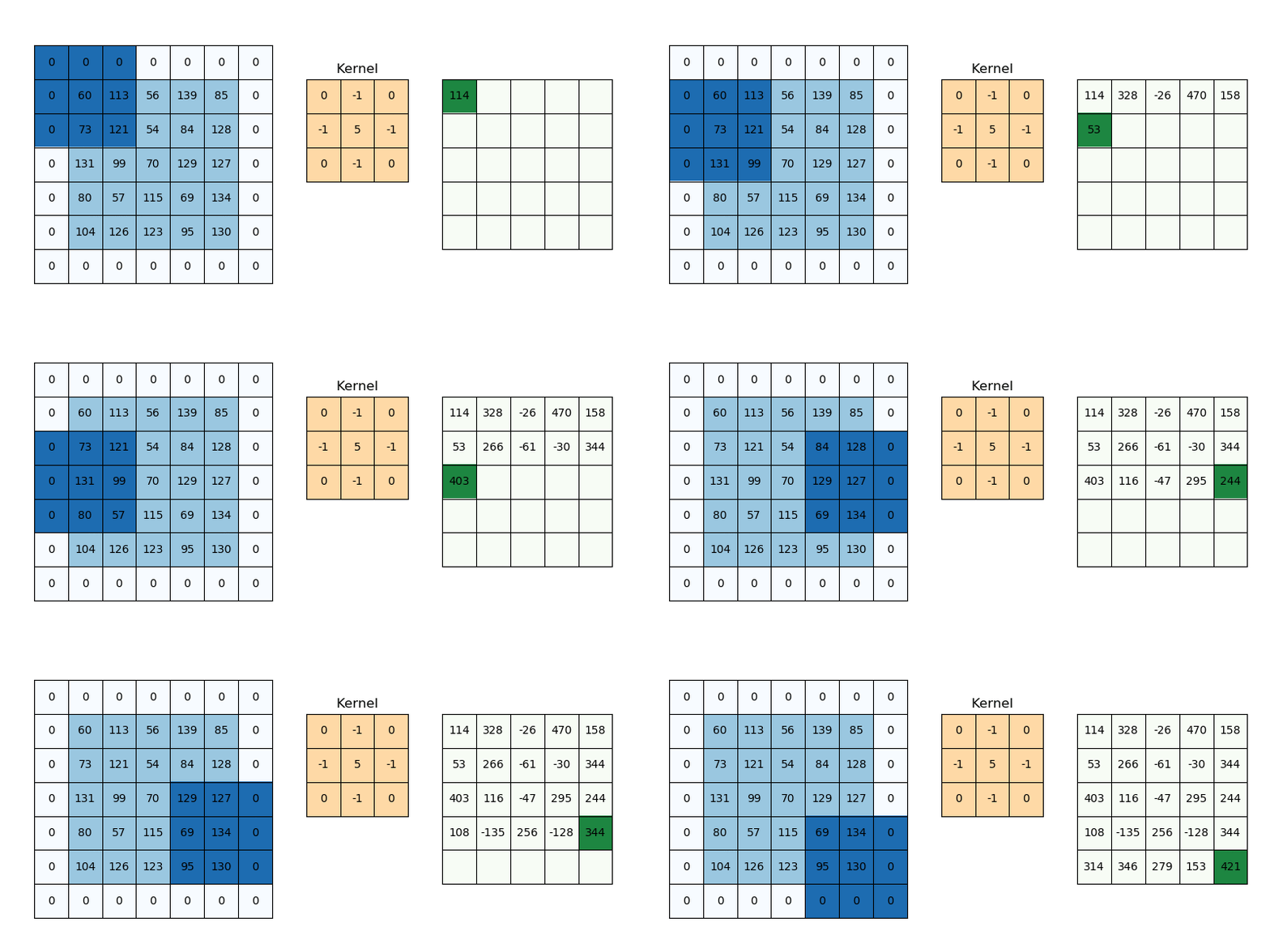
The kernel we are using is a box kernel which is a simple average of the pixels in the area surrounding the pixel (commonly used for blurring images):
# need to convert to float for calculations
img_float = image.astype(float)

kernel = np.ones((window_size, window_size)) / (window_size * window_size)
# 'constant' ensures our convolution keeps the same size as the original image which is important if we want to use the variance map to encode our message
local_mean = ndimage.convolve(img_float, kernel, mode='constant')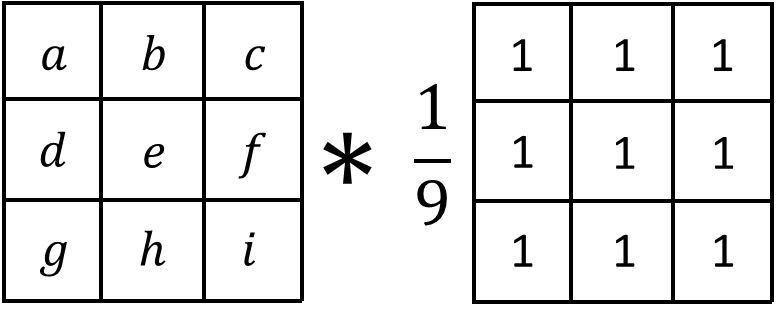
Now we can just calculate the variance (mean square diff of original image as a float and the local_mean). The final step is to convolve this map of squared differences again using the same kernel which gets us the regional variance for that pixel.
# calculate variance: mean of squared differences from local mean
squared_diff = (img_float - local_mean) ** 2
local_variance = ndimage.convolve(squared_diff, kernel, mode='constant')
Please put these all together into a function that returns the variance_map and then let’s graph the variance map to see where those higher variance areas are:
variance_map = calculate_local_variance(gray_img, window_size=3)
plt.imshow(variance_map, cmap='hot')
plt.colorbar()
plt.show()
The outlines of the dinosaurs and faunas are the brightest areas in the variance map indicating they are the areas with the highest variance which means we can reasonably encode more of our message in these areas.
First we want ensure that we can actually fit our message into the image like we have in the past. To accomplish this we can directly compare our variance map to a threshold (map >= threshold) which gives us a boolean map. We can then sum this to get the number of 'suitable' pixels we can modify.
suitable_pixels = variance_map >= variance_threshold # threshold will be a parameter in the functionWe can then use this to see how many characters we can fit into the image:
available_bits = np.sum((variance_map >= 10).flatten()) - 16 # 10 is our threshold, 16 for the delimiter
print(f"Available bits: {available_bits}")
print(f"Characters we can fit: {available_bits // 8}")
Not only that but we can also visualize the suitable pixels to see where we can encode our message:
plt.imshow(variance_map >= 10, cmap="gray")
plt.title("High-Variance Regions (White = Encodable)")
plt.axis("off")
plt.show()
It looks like there are quite a few suitable pixels to encode our message in which means we should be able to fit a longer message into the image!
|
Remember to add your delimiter to the end of your message before you check the length condition. |
We can then use a pretty slick numpy function called np.where() to get a list of all the indices that we classified as suitable:
suitable_indices = np.where(suitable_pixels.flatten())[0]We can now iterate over and then modify the bit like we did before:
for i, pixel_idx in enumerate(suitable_indices[:len(message_binary)]):
    bit = int(message_binary[i])
    flat_stego[pixel_idx] = (flat_stego[pixel_idx] & 0xFE) | bit
Using the above, please fill out the rest of the implementation:
def encode_adaptive_lsb(image_array, message, variance_threshold=10):
    """
    Encode message adaptively: only modify pixels in high-variance regions.

    Parameters:
    - image_array: numpy array of grayscale image
    - message: string message to encode
    - variance_threshold: minimum variance to consider a pixel for encoding
    """
    # Calculate variance map
    variance_map = ...

    # Create binary mask indicating if pixel is suitable for encoding based on provided threshold
    suitable_pixels = ...

    # Check if we have enough pixels
    available_bits = ... # np.sum()
    message_binary = ''.join(format(ord(char), '08b') for char in message)
    message_binary += '1111111111111110' # add delimiter

    if len(message_binary) > available_bits:
        raise ValueError(f"Not enough high-variance pixels: Need {len(message_binary)}, have {available_bits}")

    # Create list of pixel indices that are suitable
    suitable_indices = ...

    stego_image = image_array.copy()
    flat_stego = stego_image.flatten()

    # Encode message into suitable pixels only
    for i, pixel_idx in enumerate(suitable_indices[:len(message_binary)]):
        bit = ...
        flat_stego[pixel_idx] = ...

    return flat_stego.reshape(image_array.shape)
Note this adaptive LSB implementation is currently only handling 1-LSB but you can definitely modify the logic to have more complex thresholds allowing you to encode 1, 2, or 3-LSB (or more) into your image giving it a much higher capacity.
Now please also calculate the PSNR of the adaptive encoded image as well and compare to the basic LSB encoding.
We can also visualize the before and after side by side to see the difference:
fig, axes = plt.subplots(1, 2, figsize=(10, 5))
axes[0].imshow(gray_img, cmap='gray')
axes[0].set_title('Original Image')

axes[1].imshow(adaptive_lsb_stego, cmap='gray')
axes[1].set_title('Stego-Image')
plt.tight_layout()
plt.show()-
3a. Variance map visualization of dinosaur image
-
3b. Implement and use
encode_adaptive_lsb()withvariance_threshold=10for adaptive message encoding. -
3c. Report how many bits and characters you can fit using adaptive LSB (with threshold 10) compared to normal LSB.
-
3d. Compare and discuss the PSNR of adaptive vs. basic 1-LSB encoding for the same message.
-
3e. In 2-3 sentences, discuss why adaptive encoding favoring high-variance regions tends to better preserve visual quality, and how it affects detectability.
Question 4: Detection Methods - Histogram Analysis (2 points)
Detecting Hidden Messages
So far we have talked about different ways to encode messages into images, how to decode them and mentioned how certain methods are more discrete than others. But how can we actually detect if a message has been hidden in an image? This is where steganalysis comes in!
Steganalysis is the detection of hidden messages. Even though the goals of the methods we have discussed so far is to remain visually imperceptible, LSB in particular, leaves statistical traces that can be detected!
Histogram Analysis
When we perform LSB steganography, we’re modifying the least significant bit of pixel values. This creates a specific statistical pattern that can be detected through histogram analysis which can be referred to as the pairing effect.
But why do these pairs form?
Consider what happens when we modify the LSB of a pixel:
-
A pixel with value
150(binary:10010110) has LSB =0 -
If we need to encode a
1, we change it to151(binary:10010111) -
Similarly, a pixel with value
151(LSB =1) can be changed to150if we need to encode a0
The key insight is that when we randomly modify LSBs to encode a message:
-
Values
150and151can be converted into each other -
Over many modifications, these pairs should appear with similar frequencies
However, in a natural image, there’s no real reason why 150 and 151 should have similar counts which is why we can use a histogram approach to reveal this pattern!
What to look for:
-
Pairing Pattern: Adjacent even-odd pairs (0-1, 2-3, 4-5, …, 254-255) should have similar frequencies
-
Statistical Moments:
-
Skewness: Measures asymmetry. LSB steganography can make distributions more symmetric
-
Kurtosis: Measures "tailedness". Steganography can flatten the distribution
-
Variance: May change slightly as pixel values are modified
-
When plotting histograms, you might notice that pairs of values appear more balanced in stego-images compared to originals, especially in regions where many pixels were modified. This can indicate that someone tampered with the image to hide some information in it!
Looking at a more concrete theoretical example:
Imagine an original image has these pixel value counts:
-
Value 150: 1200 pixels
-
Value 151: 800 pixels
-
Total in pair: 2000 pixels
After encoding a random message using LSB steganography (modifying ~50% of pixels with values 150 or 151):
-
Some 150s become 151s (when we need to encode a 1)
-
Some 151s become 150s (when we need to encode a 0)
-
Over many random modifications, these tend to balance out
-
Result might be: 150: ~1000 pixels, 151: ~1000 pixels
The histogram would show the pair becoming more balanced, which is suspicious for a natural image!
So now let’s analyze histograms on our images to detect these patterns by calculating the histogram and basic statistics of the image.
from scipy.stats import skew, kurtosis

def analyze_histogram(image_array):
    flattened = image_array.flatten()

    # TODO: Use np.histogram to compute the histogram of pixel values
    #       - 256 bins
    #       - range from 0 to 256
    hist, bins = ...

    # TODO: Compute basic statistics of the flattened image:
    #       - mean and variance (using numpy)
    #       - skewness and kurtosis (using scipy.stats)
    stats = {
        'mean': ...,
        'variance': ...,
        'skewness': ...,
        'kurtosis': ...
    }

    return hist, bins, stats
Go ahead and call the analyze_histogram() function on the original and stego-image and print the statistics. But curiously enough, when you just look at the statistics, it looks like the stego-image is actually very similar to the original image!
print("Original Image Statistics:")
for key, value in stats_gray.items():
    print(f"  {key}: {value:.4f}")

print("\nStego-Image Statistics:")
for key, value in stats_stego.items():
    print(f"  {key}: {value:.4f}")
Let’s go ahead and use the histograms we just got here to compare the histograms of the original and stego-image:
fig, axes = plt.subplots(1, 2, figsize=(14, 5))

axes[0].bar(bins[:-1], hist_gray, width=1, alpha=0.7, label='Original')
axes[0].set_title('Original Image Histogram')
axes[0].set_xlabel('Pixel Value')
axes[0].set_ylabel('Frequency')

axes[1].bar(bins[:-1], hist_stego, width=1, alpha=0.7, label='Stego', color='orange')
axes[1].set_title('Stego-Image Histogram')
axes[1].set_xlabel('Pixel Value')
axes[1].set_ylabel('Frequency')

plt.tight_layout()
plt.show()
Now here is where we see the difference between the original and stego-image histograms. Notice how the original histogram shape looks much smoother and more natural compared to the stego-image histogram which seems to have a bunch of spikes all throughout the histogram. If we were to plot an image and see patterns like this, it would be a strong indicator that something is hidden in the image!
Limitations and Considerations
Histogram analysis is not foolproof and has a few important limitations:
-
Visual inspection is subjective: while statistical measures help, visual histogram comparison can be misleading and pairing patterns may appear naturally in some images.
-
Not fully quantitative: related to the first point,histogram analysis gives you a "feeling" but doesn’t provide a clear yes/no answer about steganography. It’s more of a qualitative assessment.
-
Works best with high embedding rates: if only a small percentage of pixels are modified, it’s like a drop in the ocean, the changes are too subtle to detect visually in the histogram.
-
Only detects LSB replacement: This method specifically targets simple LSB replacement. More sophisticated methods (LSB matching, adaptive encoding) may evade detection (not in this case though!) Frequency-domain steganography (like DCT-based methods) won’t be detected by this method
-
Image processing effects: Compression, filtering, or other processing can destroy the pairing pattern. The analysis assumes the image hasn’t been significantly altered after steganography.
But even with limitations, histogram analysis is still a useful tool to detect hidden messages in images and it also motivates the development of more sophisticated steganographic methods (like adaptive encoding and DCT-based methods) that are harder to detect.
-
4a. Complete the
analyze_histogram()function by filling in the histogram and statistics calculations -
4b. Report the statistical differences (mean, variance, skewness, kurtosis) between original and stego-images
-
4c. Graph the histograms of the original and stego-image side by side
-
4d. In 2-3 sentences, explain:
-
(1) what differences you observe,
-
(2) why LSB steganography might cause these differences,
-
(3) what limitations histogram analysis has
-
Question 5: Frequency Domain Methods - Discrete Cosine Transform (2 points)
Understanding Frequency Domain Transformations
We have previously only worked in the spatial domain (directly modifying pixel values) which we saw in the last question can be detected relatively easily with histogram analysis or other simple statistical methods. Now we will explore something a little more interesting: the frequency domain!
In this approach we look to decompose the image into its frequency components, hide information in the transform coefficients, then transform it back to the spatial domain ideally achieving a more naturally distributed message across the image making it more difficult to detect.
Why frequency domain?
- More robust to compression (like JPEG)
- Can hide in less perceptually important frequencies
- Harder to detect with simple statistical methods like the histogram-based analysis from the previous question
We will explore a common frequency domain transformation: the Discrete Cosine Transform (DCT) as means of hiding information in the frequency domain.
Understanding DCT (Discrete Cosine Transform)
What is DCT? DCT converts an image from spatial to frequency representation. It’s the same transform used in JPEG compression!
Key Concept:
- Low frequencies = smooth changes, things like brightness, contrast, and other low-frequency changes that are important for visual quality
- High frequencies = sharp edges/details, less important, often lost when compressing images like JPEG
- Mid frequencies = good place to hide data (not too important, not too noisy), this is where we will modify the coefficients to hide our message
DCT works on 8*8 blocks:
-
Divide image into 8*8 blocks
-
Apply DCT to each block → get 64 coefficients (now in the frequency domain)
-
Modify selected coefficients (e.g., positions (3,4), (4,3), (4,4))
-
Apply inverse DCT → reconstruct image (now back in the spatial domain)
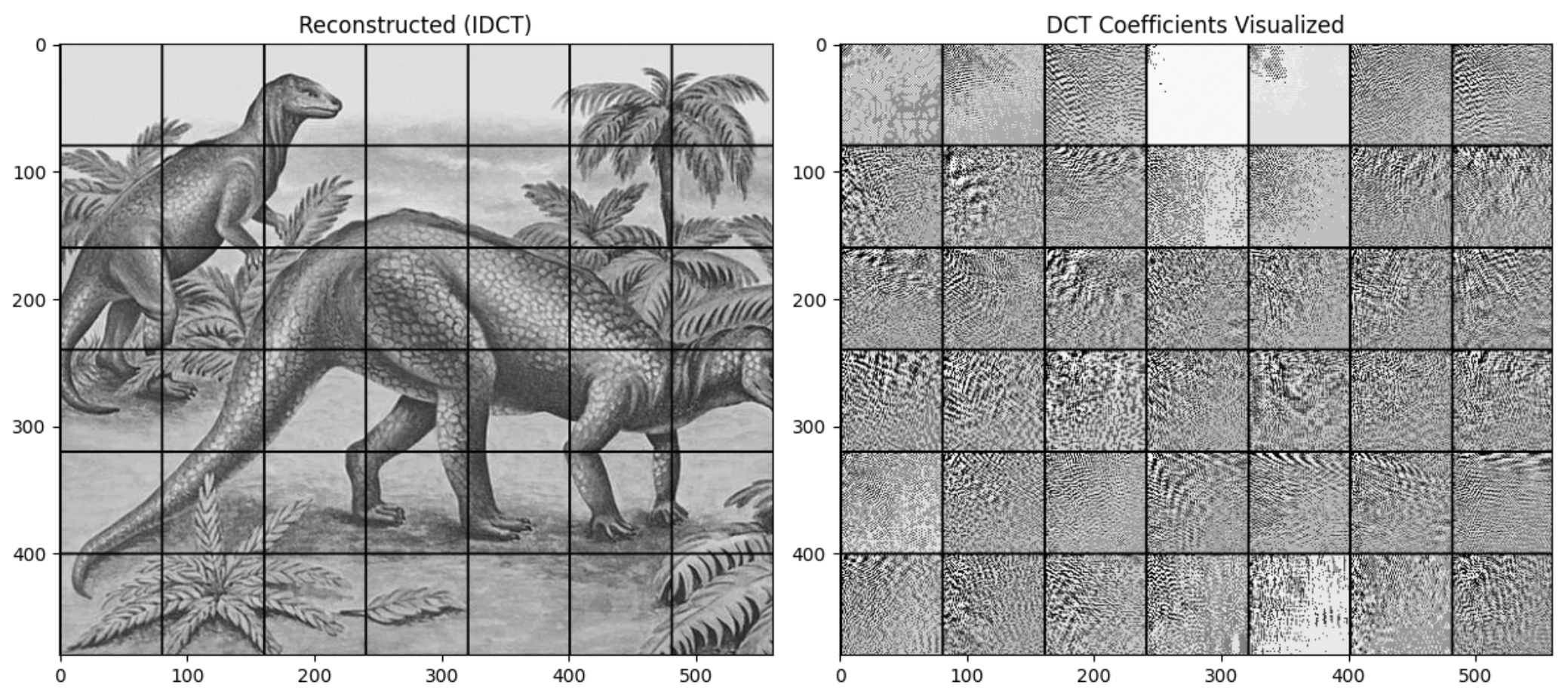
Looking at this example, we can see the general idea of how the image is broken up into blocks and then each block is transformed into its frequency domain representation like shown in the image on the right.
This is a closer look at a single block transformed into its frequency domain representation:
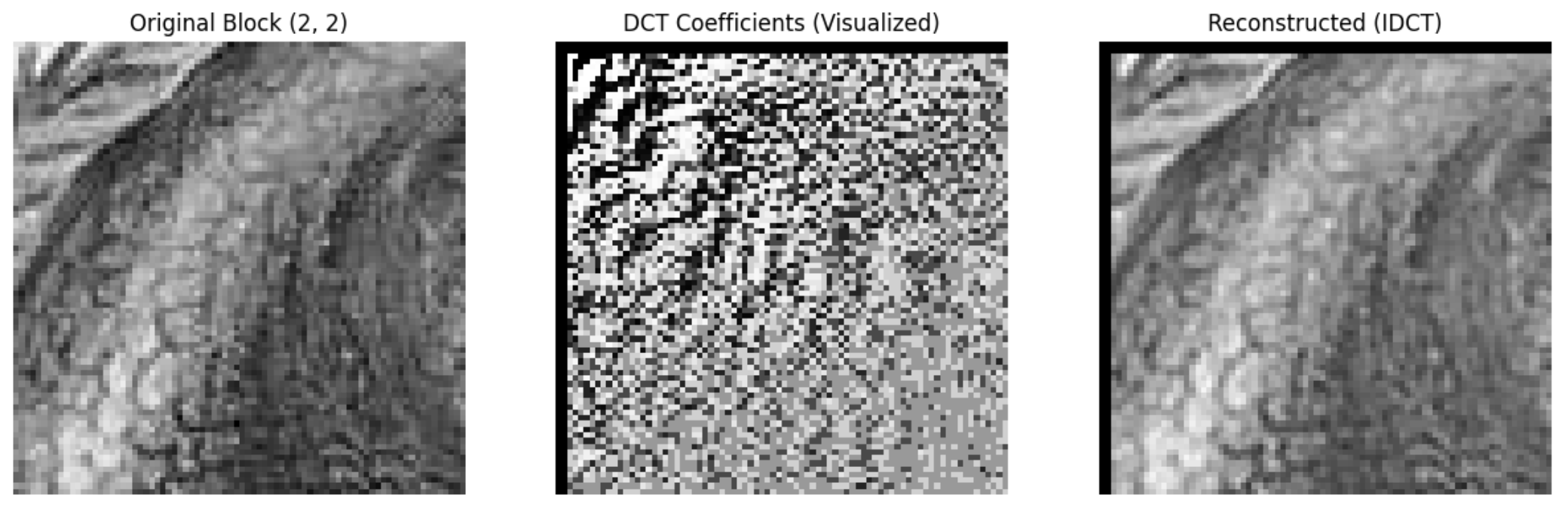
We then modify these coefficients to hide our message and then transform it back to the spatial domain to get the stego-image. In this example, there is a noticeable difference between the original and stego-image. But, note that this is showing the DCT blocks on a much larger scale than what we would be doing in practice, and, as a result, the differences are more noticeable.
In reality, the image would be broken up into many more blocks (8x8 pixel chunks) as opposed to the entire image in an 8x8 grid to look something more like this:
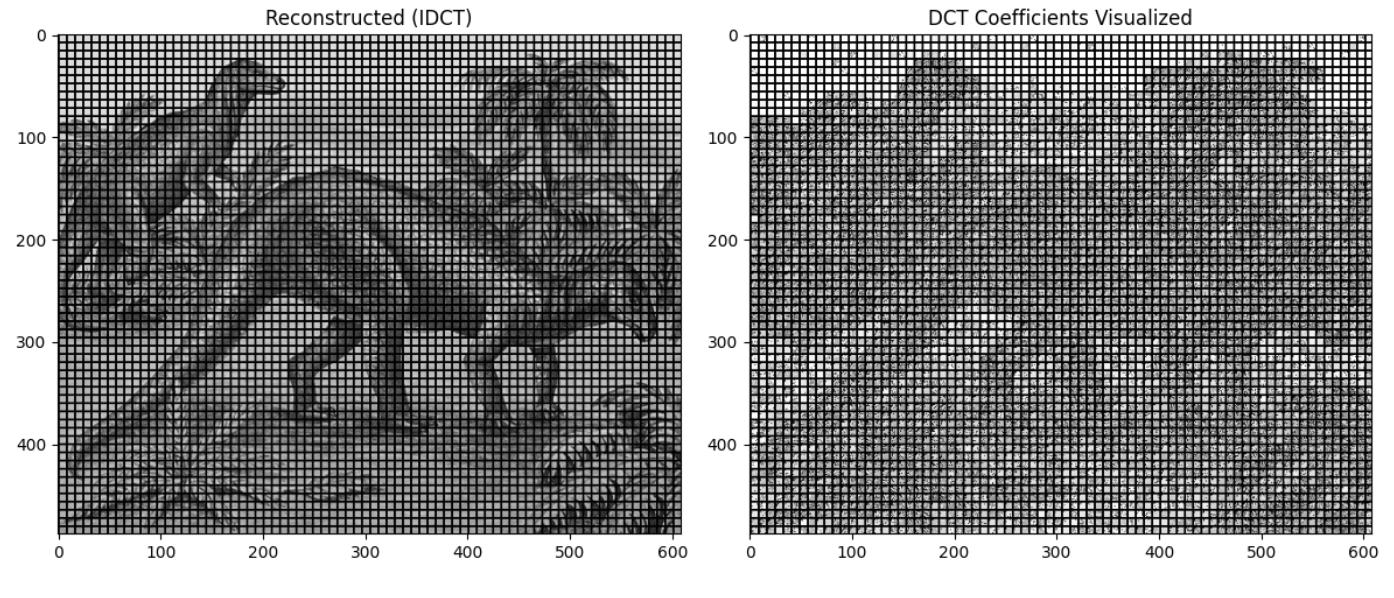
Here you can, just by looking at the representation of the coefficients, still see the general shape of the image. Splitting the image this granularly gives us more fine grained control over the image.
The code to produce these graphswas adapted from this link and converted into Python3 to visualize the DCT coefficients of the image.
Encoding with DCT
Now let’s actually go to encode a message into the image using the DCT coefficients.
The implementation below has most of the tedious parts filled out like converting the message to binary and padding the image to be multiples of the block size, etc. but we are going to focus on the part where we modify the coefficient due to numerical precision issues when doing these transformations on such a large scale.
One thing to note is that in DCT steganography, we don’t use the same concept of delimiters for a few reasons primarily dealing with numerical precision issues when doing these transformations. Instead we state at the beginning of the message how long the message is in bits and then we encode the message bit by bit.
# encodes the length of the message in the first 16 bits
# then decoder knows how many bits to expect in the message
bitstream = format(msg_len, '016b')
bitstream += ''.join(format(ord(c), '08b') for c in message)
Like we mentioned earlier, the mid-frequency coefficients are the good place to hide our message so we are going to isolate one of the the mid-frequency coefficients (position 3,4) and check if it is able to store our message based on if the absolute value of the coefficient is larger than some threshold (e.g., 1 or 1.5 - this is based on the ranges of the coefficients).
If yes, we first want to preserve the sign of the coefficient and then modify the coefficient to encode the bit: round the coefficient and set LSB like we did in the previous questions. If no, skip this block.
from scipy.fftpack import dct, idct

def encode_dct(image_array, message, block_size=8, threshold=1.5):
    """
    Encode message using DCT coefficients.

    We'll modify mid-frequency coefficients in each 8*8 block.
    """
    msg_len = len(message)
    bitstream = format(msg_len, '016b')
    bitstream += ''.join(format(ord(c), '08b') for c in message)

    # Ensure image dimensions are multiples of block_size - pad if needed
    h, w = image_array.shape
    h_padded = ((h + block_size - 1) // block_size) * block_size
    w_padded = ((w + block_size - 1) // block_size) * block_size

    padded_image = np.zeros((h_padded, w_padded), dtype=float)
    padded_image[:h, :w] = image_array.astype(float)

    stego_image = padded_image.copy()
    bit_idx = 0

    # Process each 8*8 block
    for i in range(0, h_padded, block_size):
        for j in range(0, w_padded, block_size):
            if bit_idx >= len(bitstream):
                return stego_image[:h, :w]

            # Extract block
            block = padded_image[i:i+block_size, j:j+block_size]

            # Apply 2D DCT (apply along rows, then columns) - this is the frequency domain transform
            dct_block = dct(dct(block, axis=0, norm='ortho'), axis=1, norm='ortho')
            # Now you have a 8*8 matrix of frequency coefficients

            coef = dct_block[3, 4]
            if abs(coef) > threshold:
                # YOUR CODE HERE:
                sign = np.sign(coef) if coef != 0 else 1
                # Round the coefficient, modify its LSB, then update dct_block[3,4]
                coef_int = ... # round the coefficient
                coef_int = ... # modify the LSB
                dct_block[3, 4] = ... # store modified coefficient and preserve the sign

                bit_idx += 1
                # Apply inverse 2D DCT & assign transformed block back to the original image
                idct_block = idct(idct(dct_block, axis=0, norm='ortho'), axis=1, norm='ortho')
                stego_image[i:i+block_size, j:j+block_size] = np.clip(idct_block, 0, 255)

    raise ValueError("Message too long")
We can now test the encoding function with a message, but we should note that the current implementation has a very low capacity since we are only modifying one coefficient per block meaning we really only have capacity for around 4-5k bits in this image. There are ways to improve this by modifying more coefficients per block using more advanced techniques like the zigzag scan which you can read more about in this discussions post.
fig, axes = plt.subplots(1, 2, figsize=(10, 5))
axes[0].imshow(gray_img, cmap='gray')
axes[0].set_title('Original Image')
axes[1].imshow(dct_stego_image, cmap='gray')
axes[1].set_title('DCT Stego-Image')
plt.tight_layout()
plt.show()
Part B: Decoding the DCT Message
Decoding DCT is actually even simpler for a couple reasons: the first block tells us exactly how long the message is meaning we do not need to worry about delimiters and we do not need to worry about redoing the transformations to get the original image.
Similar to the LSB decoding function, it is simply the reverse logic of the encoding function:
-
Apply forward DCT to each block to get frequency domain coefficients
-
Extract the modified coefficient at (3,4) by rounding and getting the LSB
-
Convert the bits back to binary string
-
Convert the binary back to characters (stop when delimiter is found)
def decode_dct(stego_image, block_size=8, threshold=1.5):
    """
    Decode message using DCT coefficients.
    """
    # Ensure image dimensions are multiples of block_size - pad if needed
    h, w = stego_image.shape
    h_pad = ((h + block_size - 1) // block_size) * block_size
    w_pad = ((w + block_size - 1) // block_size) * block_size

    padded = np.zeros((h_pad, w_pad), dtype=float)
    padded[:h, :w] = stego_image.astype(float)

    bits = []
    msg_len = None
    total_bits = None

    # Step 1: Apply forward DCT to each block to get frequency domain coefficients
    for i in range(0, h_pad, block_size):
        for j in range(0, w_pad, block_size):
            block = padded[i:i+block_size, j:j+block_size]
            dct_block =  ... # TODO: Apply forward DCT to the block

            # Step 2: Extract the modified coefficient at (3,4)
            coef = ... # TODO: Extract the modified coefficient at (3,4)

            if abs(coef) > threshold:
                coef_int = int(abs(round(coef)))
                bits.append(str(coef_int & 1))

                # Step 3: Decoder records how many bits are stored in the image!
                if msg_len is None and len(bits) == 16: # only runs the first time
                    msg_len = int(''.join(bits), 2)
                    total_bits = ... # 16 starting bits plus msg_len times 8 bits for the message

                if total_bits and len(bits) >= total_bits:
                    # Step 4: Convert the binary back to characters
                    payload = bits[16:total_bits]
                    return ''.join(
                        chr(int(''.join(payload[k:k+8]), 2))
                        for k in range(0, len(payload), 8)
                    )

    return None
Now let’s test the decoding function with the stego-image we encoded our message into:
decoded_message = decode_dct(dct_stego_image)
print(f"Decoded message: {decoded_message}")
You should see that the decoded message matches the original message!
The nice thing about DCT is that is a very common and powerful transform that is used many other places other than steganography like in image processing and image compression (JPEG). Hopefully this project provided a useful introduction to some of these concepts!
-
5a. DCT encoding:
-
Complete the
encode_dct()function by filling in the coefficient modification part -
Explain in 2-3 sentences: (1) why we use mid-frequency coefficients, (2) why we check if coefficient > threshold, (3) how DCT differs from LSB
-
-
5b. DCT decoding:
-
Complete the
decode_dct()function -
Test the decoding function with the stego-image we encoded our message into and ensure it matches the original message
-
Submitting your Work
Once you have completed the questions, save your Jupyter notebook. You can then download the notebook and submit it to Gradescope.
-
firstname_lastname_project7.ipynb
|
It is necessary to document your work, with comments about each solution. All of your work needs to be your own work, with citations to any source that you used. Please make sure that your work is your own work, and that any outside sources (people, internet pages, generative AI, etc.) are cited properly in the project template. You must double check your Please take the time to double check your work. See submission page for instructions on how to double check this. You will not receive full credit if your |