TDM 10200: Project 9 - Dates and Date-Times
Project Objectives
Motivation: Working with date and date-time data can be tricky and sometimes frustrating. The datetime and calendar modules can simplify these tasks and provide functionality that is not easily available with basic Python tools.
Context: The datetime and calendar modules are very useful Python libraries that can be used across many different contexts when working with real-world data.
Scope: Python, dates, date-times, grouping
Make sure to read about, and use the template found on the template page, and the important information about project submissions on the submission page.
Dataset
-
/anvil/projects/tdm/data/restaurant/orders.csv
-
/anvil/projects/tdm/data/flights/subset/1997.csv
|
If AI is used in any cases, such as for debugging, research, etc., we now require that you submit a link to the entire chat history. For example, if you used ChatGPT, there is an “Share” option in the conversation sidebar. Click on “Create Link” and please add the shareable link as a part of your citation. The project template in the Examples Book now has a “Link to AI Chat History” section; please have this included in all your projects. If you did not use any AI tools, you may write “None”. We allow using AI for learning purposes; however, all submitted materials (code, comments, and explanations) must all be your own work and in your own words. No content or ideas should be directly applied or copy pasted to your projects. Please refer to GenAI page in the example book. Failing to follow these guidelines is considered as academic dishonesty. |
Restaurant Orders
This dataset contains data about restaurant recommendations. The focus was on the challenge of making restaurant recommendations to customers. This is a record of all orders made by the customers from various vendors that were included in the competition. Each customer may place multiple orders and can order from different locations.
With data from about 35,000 customers, there is ample opportunity for data exploration. The orders are stored across 26 columns that focus on the details of each order, vender, and customer combination. The columns we will be focusing on are item_count and created_at. item_count tracks the number of items within each order. created_at marks the year, month, day, hour, minute, and second the order was created in the system.
1997 Flights
The flights dataset is huge, with files from 1987 to 2023, each with corresponding subset datasets to make the data manageable. The flights dataset provides numerous opportunities for data exploration with 5,411,843 rows from 1997 alone. These subsets contain information about when each flight took place, as well as different factors like how long they took, details such as flight numbers and other attributes. There are, of course, empty or messy values, but there is so much data that this does not make too much of an impact for what we will be doing.
There are 29 columns and millions of rows of data. Some of these columns include:
-
Year: year values (only containing 1997) for this subset -
Month: numeric month values -
DayofMonth: day of month (1 - (29 up to 31)) -
DepTime: flight departure time in military time shorthand -
Origin: abbreviation values for origin airport -
Distance: distance per flight in miles

|
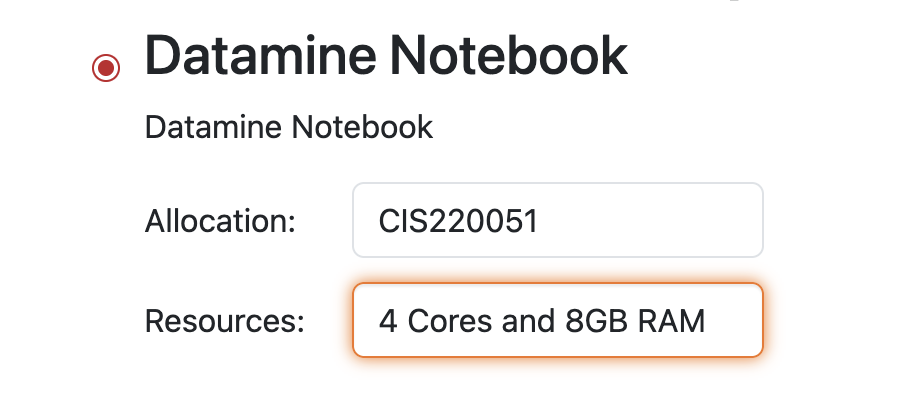
Please use 4 Cores and 8GB RAM for this project. |
Questions
Question 1 (2 points)
Use pandas to read in the Restaurant Orders dataset as orders from /anvil/projects/tdm/data/restaurant/orders.csv. Adjust the maximum number of displayed columns if needed.
Many of the entries are blank when we first look at the head of the dataset. This could be un-recorded data, errors, or just instances where the columns did not apply to the customer. This is a fairly large dataset, and the columns we will be using are more consistent, so it is OK to ignore where there are gaps.
If we look at the dtype of the created_at column, it shows the date and time values as type 'O' (object). When data is of class '<M8[ns]' ('M' indicates datetime, '8' refers to store size, '[ns] means nanoseconds'), it represents actual calendar dates and time information, rather than just written entries. You can convert character strings into datetime objects using
pd.to_datetime().
|
While the default input/output format of datetime objects is "YYYY-MM-DD HH:MM:SS", you can specify other formats using different arguments and format codes. |
Overwrite the created_at column or make a new column containing the created_at entries as actual dates.
In Python, there is a module datetime that is designed to make working with date and time data simpler and more efficient. To learn a bit about how to begin using datetime, look through this example cheatsheet.
Within datetime, there are numerous functions provided that make manipulating date/time data a lot simpler. This includes but is not limited to:
-
.dt.dayofweek- numerical day of the week (0-6) -
.dt.day_name()- day of the week (Mon - Sun) -
.dt.month_name()- name of the month -
.dt.year- year value
With the datetime created_at column, make two new columns. Your first column, num_day_of_the_week, will contain the day of the week data for the numerical date values:
orders["num_day_of_the_week"] = orders["created_at"].dt.dayofweekYour second column, day_of_the_week, will contain the day of the week data with the correct labels applied to each day of the week value:
orders["day_of_the_week"] = orders["created_at"].dt.day_name()Show the head of each of these new columns, then display their values next to that of the created_at column.
df[["col1", "col2", "col3"]].head()
|
The |
1.1 Convert the created_at column to datetime
1.2 Why would you use the datetime module of Python? Why is it useful?
1.3 Does the day of the week (name) match the correct number day of the week in each row?
Question 2 (2 points)
Now, take the month values from created_at, and save them as a new month column:
orders["month"] = orders["created_at"].dt.month_name()Please do the same for the year values to create a new year column. From these new columns, examine how the data is distributed in their respective value counts (for each month and year).
There is a column item_count that tracks how many items were in each order. Use .groupby() to see how the total counts of items in the orders were distributed across the months.
Looking through these total monthly values, you may notice that some months are not shown. If you search for locations in orders that have a month of March or April (the not-listed months), there are no rows shown as the result.
df.loc[df["col"] == "value"]
|
There were no orders made in March or April, so they had no total item count. There was an order made in May, though the item count is shown as 0 for this month. |
Group the orders dataset by both the year and the month, and get the item count of each pair.
|
Use |
2.1 Create the month and year columns from the month and year parts (respectively) of the created_at column.
2.2 What was the actual time span of orders (with items) in this dataset?
2.3 Show how the orders were distributed throughout the months of the years.
Question 3 (2 points)
Did you choose 4 Cores and 8GB RAM when starting the server?
Your kernel will be upset if you try to read in the flights data on less.
Read in the 1997 Flights dataset as flights from /anvil/projects/tdm/data/flights/subset/1997.csv.
The orders dataset had a singular column that already tracked the year, month, day, hour, minute, and second for each row. The flights dataset is a bit different. Take the Year, Month, and DayofMonth columns, and join them to create the full_dates column.
|
Typically, if you would like to make a "full_dates" column from years, months, and days, you can convert and merge the columns at one time. |
|
With this data, we do have to use |
This combining of columns that we’ve just done is actually the opposite of how we split up the created_at column in the orders data. Now that you know how to split and merge dates, you could continue to do so in an endless loop, splitting, merging, splitting again, …
But for the rest of this project, let’s just set this aside.
In the DepTime column, there are values from 1 to 2400. These represent the hour and minute of each flight’s departure time. These values range from 00-24 hours, and 00-59 minutes. The seconds are not so incredibly important, and can be left alone.
To make the DepTime column display times in a more readable format instead of military shorthand, we need to convert its values.
# divide the DepTime column values by 100
# 1600 -> 4(pm)
flights["depHour"] = flights["DepTime"] // 100
# take the remainder of dividing the DepTime values by 100
# these become the minutes
# 1340 -> 1(pm) + 40 minutes
flights["depMinute"] = flights["DepTime"] % 100
To make these columns actually contain data that is stored as hours and minutes, use pd.to_timedelta() to convert depHour to hours, and depMinute to minutes.
# hours
df["col1"] = pd.to_timedelta(df["col1"], unit='h')
# minutes
df["col2"] = pd.to_timedelta(df["col2"], unit = 'm')
For the final part of this question, make a column date_times. This is actually simple! Use the form df["new_col"] = df["col1"] + df["col2"] + df["col3"]. Be sure to include full_dates, depHour, and depMinute to create this new column.
3.1 Create the full_dates column, containing the year, month, and day of each flight.
3.2 depHour and depMinute columns that correctly represent that DepTime values.
3.3 Create the date_times column containing the year, month, day, hour, and minute of each flight.
Question 4 (2 points)
We’re going to be using Python’s calendar library a bit in this question: import calendar.
The Month column contains numerical values, each unique value representing a month of the year. To apply the names of each respective month, we will use:
flights['Month_Names'] = flights['Month'].apply(lambda x: calendar.month_name[x])

month_order = list(calendar.month_name)[1:]
These lines may look a bit complex, but they are very useful. The first line is basically: 'take each value in Month (that’s x), and apply the matching calendar month name'. The second line orders the month names from 1 (January) to 12 (December), so the order of the months in the year has meaning.
Earlier in Project 4, we created a column that contained categorical values in the Titanic dataset. This looked like:
myDF["Passenger_Class"] = pd.Categorical(
    myDF["Pclass"],
    categories=[1, 2, 3],
    ordered=True
).rename_categories(["First Class", "Second Class", "Third Class"])
Using this as our guide, we’re going to create categories in the column Month_Names. The categories will be decided from month_order. And we do want these to have an order, so ordered remains True. In this case, we do not need to rename the categories, as the new names are already set in Month_Names, and we’re not creating a new column.
Make a dataframe bostonDF that contains only the values from flights that had an Origin of BOS.
Flights departing from Boston could have many different arrival locations. But one thing that is fair to guess is that the average flight distance across each of the different months of the year would be fairly similar. Start by looking at how many Boston flights there were per month (using Month_Names as the month column).
|
Because the month names are order categories, setting |
4.1 When is it useful to use the calendar library?
4.2 Create the categorical column Month_Names.
4.3 Show the value counts of Month_Names in bostonDF.
Question 5 (2 points)
We have worked just a little bit with bostonDF so far. To start this question, create dataframes for each of three more locations:
-
phoenixDFfor Origin == "PHX" -
chicagoDFfor Origin == "MDW" -
seattleDFfor Origin == "SEA"
In each of these location-specific dfs, group to find the average distance per month. For an example using bostonDF:
boston_distance = bostonDF.groupby('Month_Names')["Distance"].mean()This line may produce a harmless warning message. You can ignore this, or use the line:
boston_distance = bostonDF.groupby('Month_Names', observed=True)["Distance"].mean()Perform this grouping on each of the four locations. After, you should have boston_distance, phoenix_distance, chicago_distance, and seattle_distance. Put these four series into a new dataframe:
my_distances = pd.DataFrame({
    'BOS': ????,
    'PHX': ????,
    'MDW': ????,
    'SEA': ????
})
There is a Python library called matplotlib. This library is very commonly used for whenever you need to make a plot in Python. There are many different kinds of plots that you could make, but in this question, we will be making a basic plot.
Take my_distances, and make a plot. A simple way to do this (while including all of the month names on the x-axis) is:
my_distances.plot()
plt.xticks(ticks=range(len(my_distances.index)), labels=my_distances.index, rotation=45)
plt.show()
You are free to learn about customizing this plot further. Some common things to add are:
-
main title
-
axis labels
-
legend
-
grid lines
-
colors
5.1 Create dataframes for the flights starting from each of the four selected locations.
5.2 Show what is actually stored in my_distances.
5.3 Show your plot comparing the average distances of flights from each of the four locations across the year.
Submitting your Work
Once you have completed the questions, save your Jupyter notebook. You can then download the notebook and submit it to Gradescope.
-
firstname_lastname_project9.ipynb
|
It is necessary to document your work, with comments about each solution. All of your work needs to be your own work, with citations to any source that you used. Please make sure that your work is your own work, and that any outside sources (people, internet pages, generative AI, etc.) are cited properly in the project template. You must double check your Please take the time to double check your work. See submission page for instructions on how to double check this. You will not receive full credit if your |