TDM 19000: Logging Onto Anvil
First and foremost, welcome to The Data Mine! We hope that throughout your journey with us, you learn a lot, make new friends, and develop skills that will help you with your future career. Throughout your time with The Data Mine, you will have plenty of resources available should you need help.
|
If you did not (yet) set up your 2-factor authentication credentials with Duo, you can set up the credentials here: https://the-examples-book.com/setup If you are still having issues with your ACCESS ID, please send an email containing as much information as possible about your issue to [email protected] |
Let’s start off by starting up our first Jupyter session on Anvil! We always use the URL notebook.anvilcloud.rcac.purdue.edu or ondemand.anvilcloud.rcac.purdue.edu and the ACCESS username that you were assigned (when you setup your account) and the ACCESS password that you chose. These are NOT the same as your Purdue account!
|
These credentials are not the same as your Purdue account. |
You should now be on a screen that looks like this:
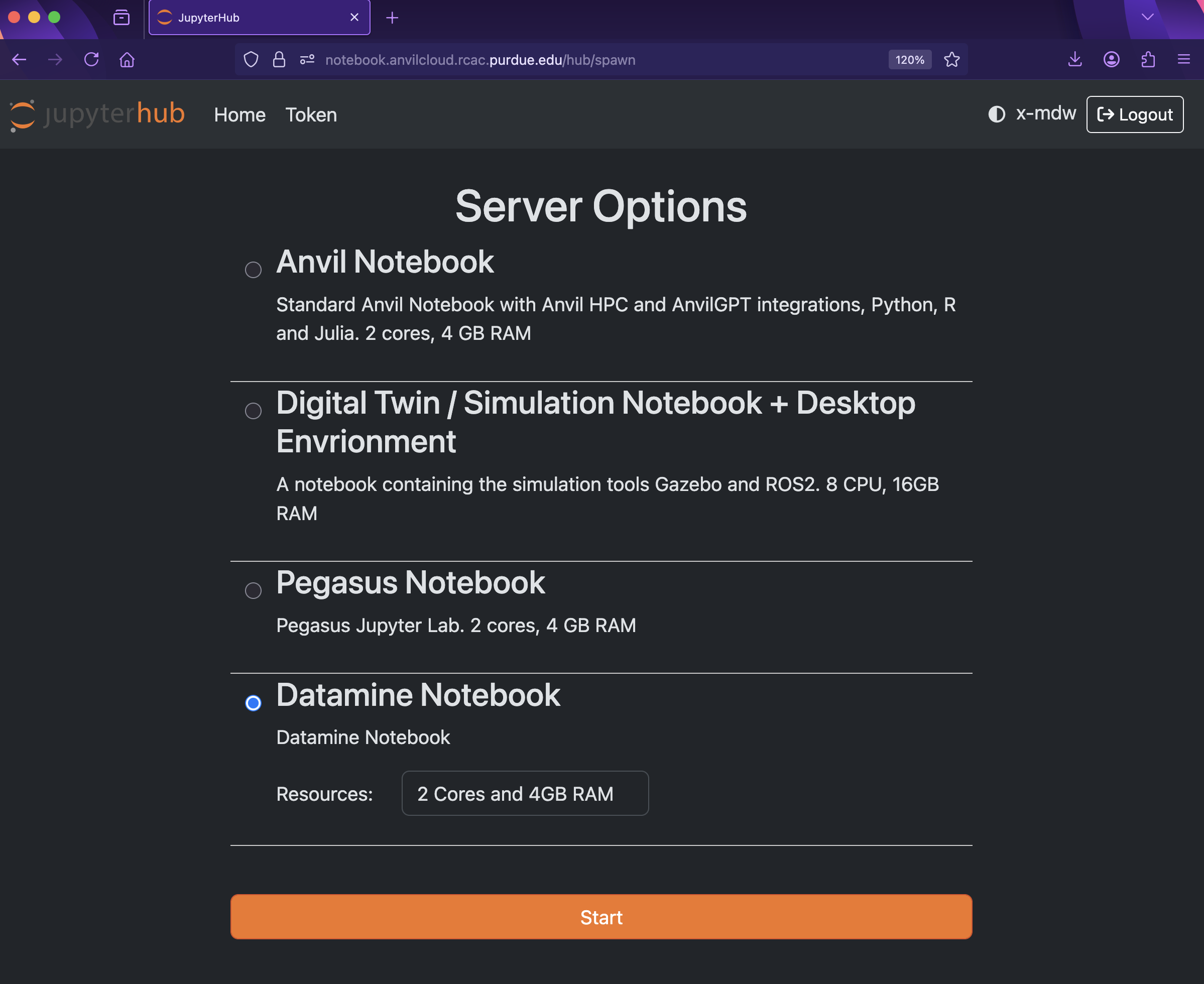
There are a few key parts of this screen to note:
-
You need to use Datamine Notebook (not the Anvil Notebook) for The Data Mine
-
Resources: CPU cores do the computation for the programs we run. It may be tempting to request a large number of CPU cores and RAM, and set it to the maximum, but our computing cluster is a shared resource. This means every computational core that you use is one that someone else can’t use. We only have a limited number of cores assigned to our team, so please ONLY reserve 2 Cores and 4GB RAM, unless the project needs more cores.
|
The Jupyter Lab environment will save your work at regular intervals, so that at the end of a session, your work should be automatically saved. Nonetheless, you can select File from the menu and Save Notebook any time that you want. (It is not necessarily, because Jupyter Lab saves automatically, but you can still save anytime if you want to.) |
With the key parts of this screen explained, go ahead and start Datamine Notebook and click the orange Start button! After a bit of waiting, you should see something like below while you are waiting for just a few seconds (sometimes it is fast and you will not even see this!)
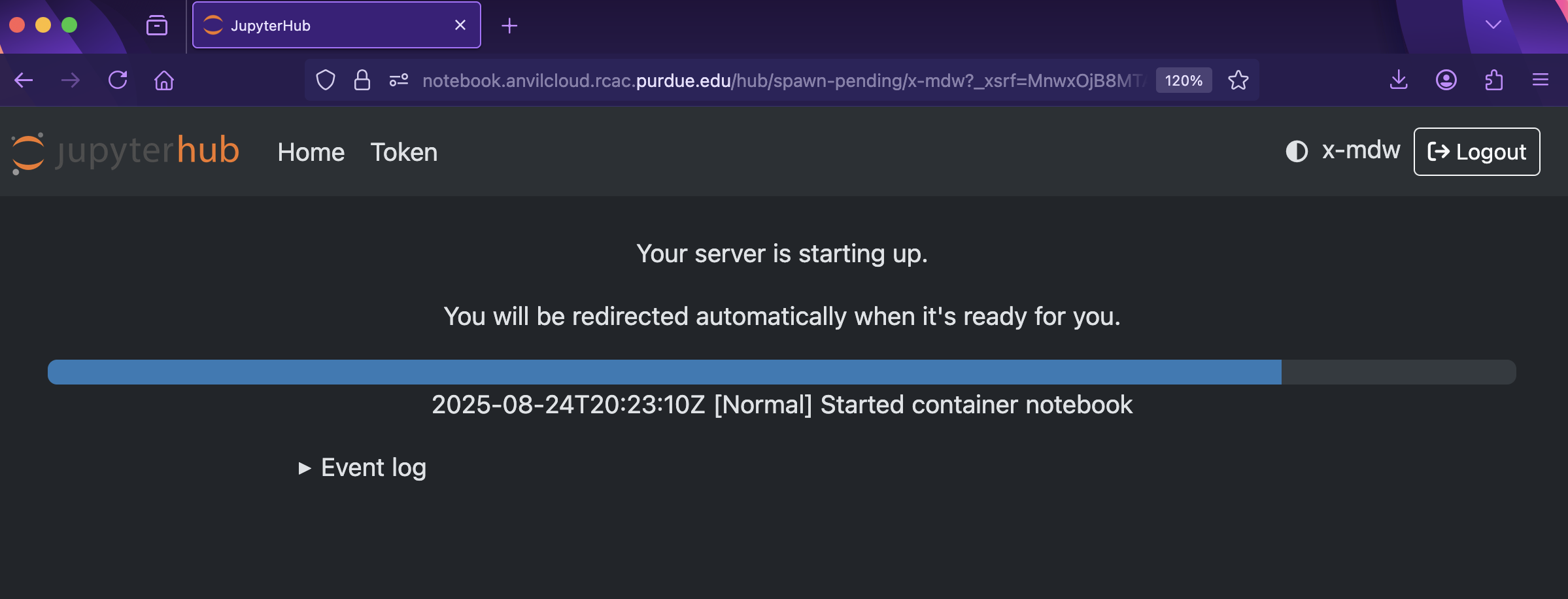
and then, when the Jupyter Lab is ready for you to work, you will see this:
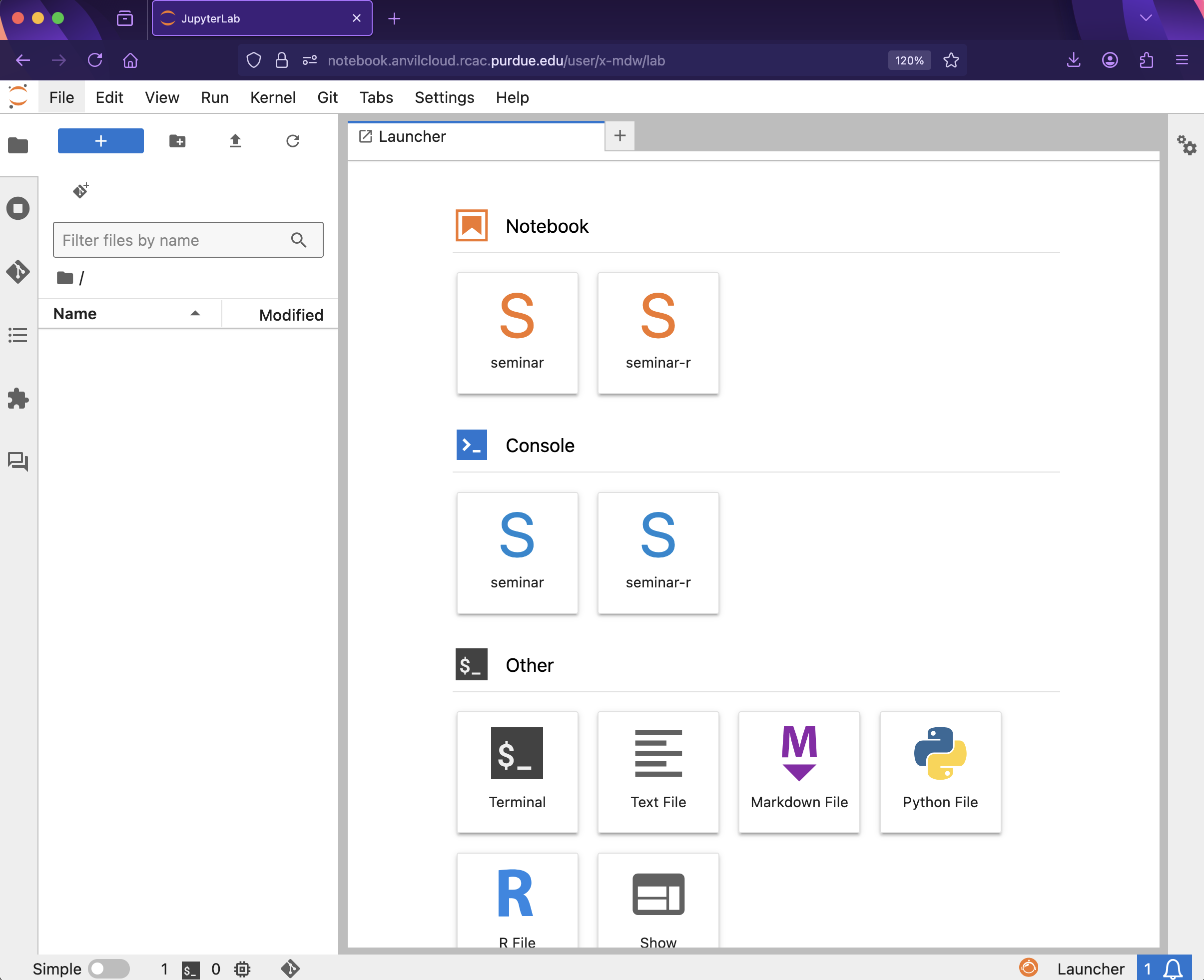
|
You likely noticed a short wait before your Jupyter session launched. This happens while Anvil finds and allocates space for you to work. The more students are working on Anvil, the longer this will take, so it is our suggesting to start your projects early during the week to avoid any last-minute hiccups causing a missed deadline. Please do not wait until the last evening to complete and submit your work! The projects for the summer 2026 TDM 19000 are usually due on Mondays. |
Download the project template, as described here: the-examples-book.com/projects/templates
When you first open the template, you may get a pop-up asking you to select what kernel you’ll be using. Select the seminar kernel (not the seminar-r kernel). If you do not get this pop-up, you can also select a kernel by clicking on the upper right part of your screen that likely says something similar to No Kernel, and then selecting the kernel you want to use.
We give some information about kernels here: the-examples-book.com/projects/kernels
As you continue to get comfortable with Jupyter Lab, you might want to read more about Jupyter Lab (this is optional).